
A website migration checklist for owner-run business sites
A website migration checklist for owners: what to save, how to map and test redirects, and what to check on launch day and in the weeks after.
A website migration is any change to the addresses, platform, templates or domain that Google already knows about. The usual problems are predictable. Old pages end up with nowhere to go. The blocks that kept your staging site (the private test copy) out of search get left on. Content gets quietly cut in the redesign.
This website migration checklist runs in the order you'd do the work: before launch, on launch day and in the weeks after. Each step comes with a check you can run yourself and a link to Google's own guidance.
Before launch
- Crawl and save the old site
- Build one URL list
- Map and test redirects on staging
- Check content, canonicals and sitemap
Launch day
- Redirects on, staging blocks off
- Crawl old URLs in list mode
- Inspect top pages, submit the sitemap
- Update profiles, ads and key links
First weeks
- Watch Page indexing and Not found
- Compare old and new sitemap counts
- Compare top pages with your baseline
- Fix 404s that had traffic first
What counts as a website migration?
Any move that changes what Google has already crawled counts as a migration. That covers a redesign on the same domain, a change of platform, a new URL structure, a new domain, or a new host with the same addresses. Each one changes something different, so each needs a slightly different set of checks.
A redesign can keep every URL and still change the templates, headings and copy Google uses to understand your pages. A platform change, say from WordPress, Squarespace, Webflow, Wix or Shopify to a custom Next.js build, usually changes the templates and the URL patterns at once. A URL restructure moves pages to new addresses. A domain change moves everything.
Redesign, same domain
Templates, content, sometimes URLs
Compare old and new crawls
Platform change
Templates and often every URL
Full redirect map
URL restructure
Addresses of moved pages
Redirect map, new internal links
Domain change
Every URL and the host
Change of Address after redirects are live
Hosting only
The server, not the URLs
Test Googlebot access, lower DNS TTL a week ahead
For every move that changes addresses, you'll rely on redirects (rules that forward old addresses) and an updated sitemap (a file listing your pages). Google's Change of Address tool is only for moves where the domain or subdomain changes.
If only the host changes, Google's hosting guide is the one to follow. Check that your firewall or attack protection doesn't block Googlebot. Lower your DNS TTL (how long address lookups are cached) at least a week ahead. Keep the old hosting running until its traffic reaches zero. GoogleSourceChanging your hosting.
Google's site move guide gives one piece of advice that saves a lot of trouble: "change only one thing at a time." If the domain, platform and design are all changing, Google suggests doing them in sequence: domain first, then the CMS, then the layout. GoogleSourceHow to move a site. If you're still deciding how much to change, settle that first. A clear decision makes every step below simpler.
What should you save before anything changes?
Save a complete picture of the old site before anyone touches it: a full crawl, one list of every URL you know about, your top pages' content and your Search Console data. This baseline is what you'll map redirects from, test against on launch day and compare with in the weeks after. Every later step leans on it.
Start with a crawl of the live site. A crawler such as Screaming Frog's SEO Spider follows every link and records each URL with its status code, title and headings. Keep that file. The Screaming Frog migration guide uses it later to compare staging against the old site.
A crawl only finds pages that are linked, so Google's guide suggests gathering old URLs from several places. Build one combined list from:
- your CMS listing of pages and posts
- your XML sitemaps (WordPress core puts one at
/wp-sitemap.xml, per New XML Sitemaps Functionality in WordPress 5.5) - the Pages tab of the Performance report in Search Console
- your top landing pages in analytics
- the Links report in Search Console, which shows the pages other sites link to
Add images, PDFs and video files too. A price list PDF that brings in visitors on its own is easy to forget, so give it a row.
Next, save the old site's robots.txt (the file that guides crawlers), its sitemap and any redirects already in place. Those older redirects need to come with you. For your most important pages, save the title, main heading and body copy. If something has already changed, archive.org often has earlier copies, a tip from Search Engine Journal's When Revamping a Site Can Negatively Impact Rankings.
Export your Search Console data now. Google's [GA4] Search Console integration page notes that "Search Console keeps data for the last 16 months." According to Export data directly from a Search Console report, a report export is cut off at 1,000 rows, so on a larger site, filter by section and export each one.
Once mapping starts, freeze new content on the old site, as Moz's migration guide recommends. A post published halfway through the project won't be in your map. Moving off Squarespace? Our guide to migrating from Squarespace walks through the platform-specific steps.
How do you decide what happens to each old page?
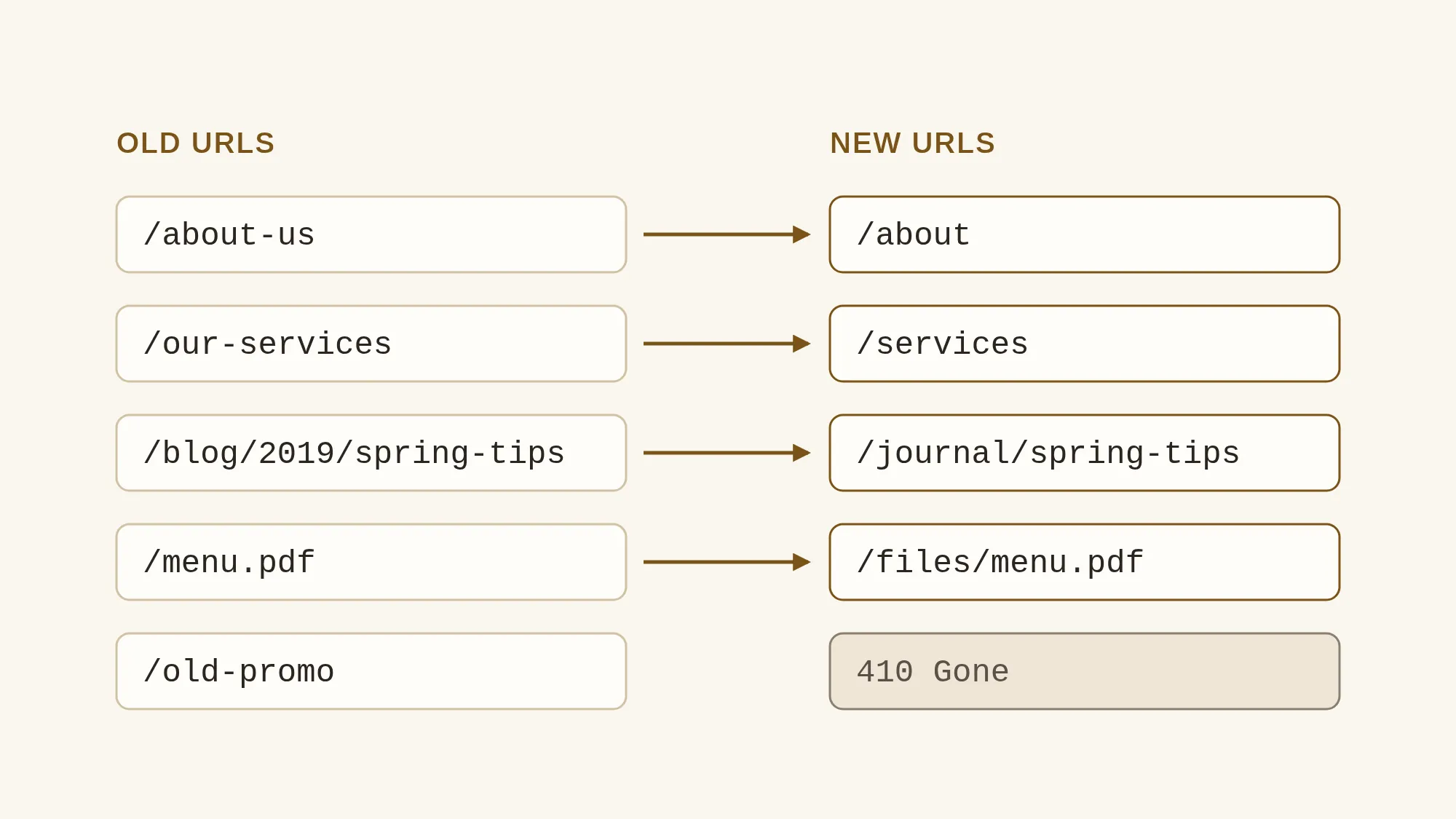
Give every old URL exactly one decision: keep, move, merge or retire. Keep the same address wherever you can. Moved and merged pages redirect to their closest new match, and retired pages with no match return a 404 or 410 status (codes that mean gone). One spreadsheet keeps every decision in one place.
Keeping a URL is the simplest win in a migration. In a 2021 Q&A reported by Search Engine Journal, Google's John Mueller advised keeping URLs, internal linking, and "the content and the layout on the pages" as stable as possible. When URLs, layout and content all change without redirects, he said, Google may treat the site as new and start over. Every URL you keep is one less redirect to build and test.
Moving means the page survives at a new address. Merging means two or more thin pages become one stronger page, and each old URL redirects to it. Google's guide allows that for consolidated content. Retiring means the page goes and nothing replaces it.
Send retired pages to a 404 or 410, never to the homepage. Google may treat a mass of homepage redirects as soft 404s (pages it counts as missing). An honest 404 or 410 is the cleaner signal, and it keeps your map truthful.
Send retired pages to a 404 or 410, never to the homepage.
Finalize your new URLs before you start mapping. Moz makes this point for a practical reason: if a section gets renamed after the map is done, every row pointing at it needs rework. Agree the structure, lock it, then map.
Here's a finished map for a fictional bakery moving from WordPress to a new build.
/about-us
/about-us
Keep
/wedding-cakes.html
/cakes/wedding
Move (301)
/birthday-cakes
/cakes/custom
Merge (301)
/celebration-cakes
/cakes/custom
Merge (301)
/blog/2019-holiday-hours
None
Retire (410)
/uploads/menu.pdf
/files/menu.pdf
Move (301)
Notice the PDF entry. Files have addresses too, and people bookmark and share them, so they belong in the map with everything else.
A redirect map Google can follow
A good redirect map sends each old URL straight to its final new page with a server-side permanent redirect, a 301 or 308, in a single hop. Google's site move guide says permanent redirects "don't cause a loss in PageRank," so a clean map passes along the credit your old pages earned instead of leaving it on dead addresses.
Google lists 301 and 308 as permanent. The temporary codes, 302, 303 and 307, don't tell Google to treat the new page as the main version. Test a few redirects and confirm your platform returns a permanent code. GoogleSourceRedirects and Google Search.
Then work through the details:
- Bring legacy redirects across. The old site may already redirect addresses from an earlier redesign. Carry them over and collapse chains: if A went to B and B now goes to C, point A straight at C.
- Update internal links. Menus, footers and links inside your copy should point at the new URLs directly. Redirects are the safety net for everyone arriving from outside.
- Keep redirects for the long term. Google's site move guide says to keep them "generally at least 1 year." For a domain move, the Change of Address help page asks for at least 180 days of redirects and suggests keeping the old domain for at least a year. Keeping them longer costs very little and keeps old links working.
To check your plan against a working standard, compare it with the redirect rules we follow.
Where redirects live on common platforms
Redirects live on whichever server answers the old addresses after launch. On a same-domain move, that's the new host. On a domain change, the old domain has to keep pointing at a server that sends each old URL to its new home.
- Next.js: add them to the
redirectsfunction innext.config.js. Per the Next.js redirects docs,permanent: truesends a 308 andpermanent: falsesends a 307, so usetruefor a migration. - Webflow: go to Site settings > Publishing > 301 redirects, on a paid Site or Workspace plan. Rules run in the order you add them, so put specific rules before wildcards. Webflow recommends a maximum of 1,000 and supports CSV import and export, according to How do I set up redirects in Webflow?
- Squarespace: URL mappings only work for domains connected to your Squarespace site, and they can't redirect image or file URLs. If you're leaving the platform, set your redirects up on the new host.
- WordPress: redirects can sit in your server configuration or in a redirect plugin. Either works, as long as it returns a permanent 301 or 308.
Use JavaScript redirects only when nothing else is possible. Google's redirects page explains that they depend on rendering, which can fail, so a server-side rule is always your first choice.
What should you test before the new site goes live?
Test the new site on staging as if it were already live. Check that it's hidden from search, that top pages kept their content, that canonicals (tags naming the preferred URL) and internal links point at new URLs, that the sitemap is clean, and that every old URL redirects correctly. Problems found here never reach your visitors.
Password or IP restriction
- Keeps Google out without touching robots.txt
- Nothing to undo in the live files
robots.txt block
- The file can get copied to the live site at launch
- Hides any noindex tag from Google
Keep staging out of search the safe way. A robots.txt block copied to the live site is a classic mistake, Moz notes. The block also hides any noindex tag (a tag saying "don't list this"), because a page blocked by robots.txt can't show its noindex to Google. A password avoids both problems. GoogleSourceBlock Search indexing with noindex.
Prepare the launch files now. Write the live robots.txt in advance. If you used noindex during development, Google's guide says to prepare the list of URLs it comes off, so removing it on launch day is quick.
Compare old and new content. Crawl staging and set it beside your baseline crawl. Titles, H1s (the main page headings) and body copy on your top pages should carry over. Screaming Frog's guide shows how to compare a staging crawl with the live one using URL mapping and change detection.
Check what Google will actually see. If the new build relies on JavaScript to show content, look at the rendered HTML (the page after scripts run), not only the source. Google's JavaScript SEO basics puts it plainly: content that isn't in the rendered HTML can't be indexed. Once the site is live, URL Inspection shows you that rendered version.
Staging is locked
A password or IP restriction keeps it out of search, with no robots.txt block to carry over.
Canonicals point to themselves
Each new page has a canonical tag naming its own new URL.
Top pages kept their content
Titles, H1s and body copy match the baseline crawl or improve on it.
Internal links use new URLs
Menus, footers and in-text links go straight to the new page without a redirect.
The sitemap is clean
The new XML sitemap lists only live, canonical URLs that load normally.
Tracking came across
The Search Console verification file or tag and your analytics code are on the new templates.
Forms and booking work
Every contact form, booking tool and checkout sends to the right inbox or system.
Old URLs redirect correctly
Run the full old URL list through a redirect test on staging and fix every miss.
What happens on launch day?
Launch day is when the redirects go live, the staging blocks come off and you confirm Google can reach the new pages. Pick a quieter traffic period, as Google suggests, then work in a set order: switch everything on, crawl the old URLs, spot check top pages, submit the sitemap and update your outside links.
- Switch everything on. Turn on the redirects, remove the password or IP restriction, swap in the live robots.txt and take noindex off every page on your list.
- Crawl the old URL list. Use list mode (crawling only that list) with redirects followed. Fix anything that is not a single permanent hop to a live page, then crawl again until the list comes back clean.
- Inspect your top pages. Search Console's URL Inspection tool shows the HTML Googlebot received, so you can confirm the content, canonical and indexing status.
- Submit the new sitemap in the Sitemaps report.
- Run Change of Address, for a domain move. Do it once redirects are live, for every variant of the old site, including www and non-www, each verified in Search Console.
- Update the links you control. Your Google Business Profile, social profiles and ads first, then ask the sites that send you the most visits to update theirs.
Screaming Frog's guide uses the list-mode crawl to find 404s, redirect chains, loops, temporary redirects and redirects that land on pages Google can't index. For the sitemap itself, Google's guide covers the format and the submission. GoogleSourceBuild and submit a sitemap.
If the site has to go offline briefly during the switch, return a 503 status (a "back soon" signal). Moz recommends it because it tells crawlers to come back later.
What should you watch in the first weeks?
Watch Search Console and your server logs closely, starting on launch day. You're looking for pages Google can't find, sitemaps that aren't being picked up, and top pages whose clicks fall well below your baseline. Fix problems on pages that had traffic or links first, since those carry the most value.
In Search Console, these reports do most of the work:
- Page indexing: look for a spike in Not found (404) pages, and for new pages that aren't being indexed.
- Sitemaps: the indexed count for the old sitemap should fall while the count for the new one rises.
- Performance: filter by page and compare clicks and impressions for your top pages with the baseline you exported.
- URL Inspection: recheck any top page that drops.
Your server or hosting logs show the errors that Google and visitors actually hit, including old URLs that never made it into the map. Add a redirect for any missed page that had traffic or links, and let the rest return a 404.
Rankings can move during a migration. Google's site move guide says they can fluctuate while it recrawls and reindexes a moved site, and that for a medium site it "can take a few weeks or more" before Google starts showing the new URLs instead of the old ones, longer for larger sites. That timing is about indexing the new addresses. Google also crawls a moved site more heavily than usual for a while, so make sure your hosting can handle the extra load.
You may also see an old URL in results now and then. Google's redirects page says that's normal, because the old address can show as an alternate name for the new page.
Nobody can promise rankings or a date for traffic through a move. What this checklist does is help you find the problems you can control while they're still small. If your new site launched a while ago and traffic has already dropped, start with what to check when traffic drops after a migration.
Can you run the migration yourself?
Yes, if the site is small, most URLs stay the same, you have full CMS access and you've set aside time to test. For a move like that, this checklist and a crawler are enough to work with. Bring in help when the move gets bigger or more technical than your team can check.
These are the signs it's worth getting a second pair of eyes:
- Many URLs are changing, or the whole structure is new.
- The domain is changing.
- The new build relies on JavaScript, and nobody on your side can read the rendered HTML.
- You have no list of old URLs.
- A developer is building the site and nobody owns the search side.
If you're going it alone, Google's site move guide points to two resources worth bookmarking: Aleyda Solis' SEO Guides, Checklists and Tools For Web Migrations, which includes a minimum viable validation checklist for before and after a move, and the Screaming Frog guide used throughout this article.
If you'd like an expert check before you commit, start with the Website and Search Audit. It reviews up to 200 pages of your current site and, with access, your Search Console and GA4 data, so you know which pages bring in search traffic and what to fix first before anyone writes the redirect map. It costs CAD 800 for Canadian clients and USD 750 for everyone else. The audit fee is credited toward any follow-on work booked within 60 days of report delivery, including new builds and care plans. See the Website and Search Audit.
If you'd rather hand over the whole move, so it's planned, mapped and tested end to end, see our SEO migration services. Either way, the first step is the same: save a full baseline of the old site this week, before anything changes.
References
References (17)
- Google Search Central. How to move a site. https://developers.google.com/search/docs/crawling-indexing/site-move-with-url-changes
- Google Search Central. Redirects and Google Search. https://developers.google.com/search/docs/crawling-indexing/301-redirects
- Google Search Central. Changing your hosting. https://developers.google.com/search/docs/crawling-indexing/site-move-no-url-changes
- Search Console Help. Change of Address tool. https://support.google.com/webmasters/answer/9370220
- Google Search Central. Block Search indexing with noindex. https://developers.google.com/search/docs/crawling-indexing/block-indexing
- Google Search Central. Understand the JavaScript SEO basics. https://developers.google.com/search/docs/crawling-indexing/javascript/javascript-seo-basics
- Search Console Help. Export data directly from a Search Console report. https://support.google.com/webmasters/answer/12919797
- Google Analytics Help. [GA4] Search Console integration. https://support.google.com/analytics/answer/10737381
- Google Search Central. Build and submit a sitemap. https://developers.google.com/search/docs/crawling-indexing/sitemaps/build-sitemap
- Next.js. redirects. https://nextjs.org/docs/app/api-reference/config/next-config-js/redirects
- Webflow Help Center. How do I set up redirects in Webflow? https://help.webflow.com/hc/en-us/articles/33961294898835-How-do-I-set-up-redirects-in-Webflow
- Squarespace Help Center. URL mappings. https://support.squarespace.com/hc/en-us/articles/205815308-URL-mappings
- WordPress. New XML Sitemaps Functionality in WordPress 5.5. https://make.wordpress.org/core/2020/07/22/new-xml-sitemaps-functionality-in-wordpress-5-5/
- Search Engine Journal. When Revamping a Site Can Negatively Impact Rankings. https://www.searchenginejournal.com/revamping-website-search-impact/413039/
- Moz. The Website Migration Guide: SEO Strategy, Process, & Checklist. https://moz.com/blog/website-migration-guide
- Screaming Frog. How To Use The SEO Spider In A Site Migration. https://www.screamingfrog.co.uk/seo-spider/tutorials/how-to-use-the-seo-spider-in-a-site-migration/
- Aleyda Solis. SEO Guides, Checklists and Tools For Web Migrations. https://www.aleydasolis.com/en/search-engine-optimization/seo-for-web-migrations/
Want a second pair of eyes before you move?
The Website and Search Audit reviews up to 200 pages and adds your Search Console and GA4 data. CAD 800 for Canadian clients, USD 750 for everyone else.