
How to migrate from Squarespace safely
Prepare your Squarespace move with a practical content inventory. Know what exports, what to rebuild, and how to keep booking, your domain and email working.
Before you cancel Squarespace, save your content and make sure the replacement can handle inquiries, bookings and everyday updates. Export what the platform supports, collect the rest, and build the replacement while the old site is still available. Your booking service, domain registration and business email may be able to stay where they are.
This guide is for a business that has decided to leave and needs to prepare the move. If that decision is still open, start with when a custom website is worth the upgrade.
- Make an inventory. List your pages, files and connected services.
- Save the material. Export supported content and collect the rest.
- Build the replacement. Recreate layouts, editing, forms and booking access.
- Protect search visibility. Plan page addresses and test changed links.
- Connect your domain. Point it to the new host and check email.
- Retire the old site. Verify the move, then review each subscription.
What can you take with you?
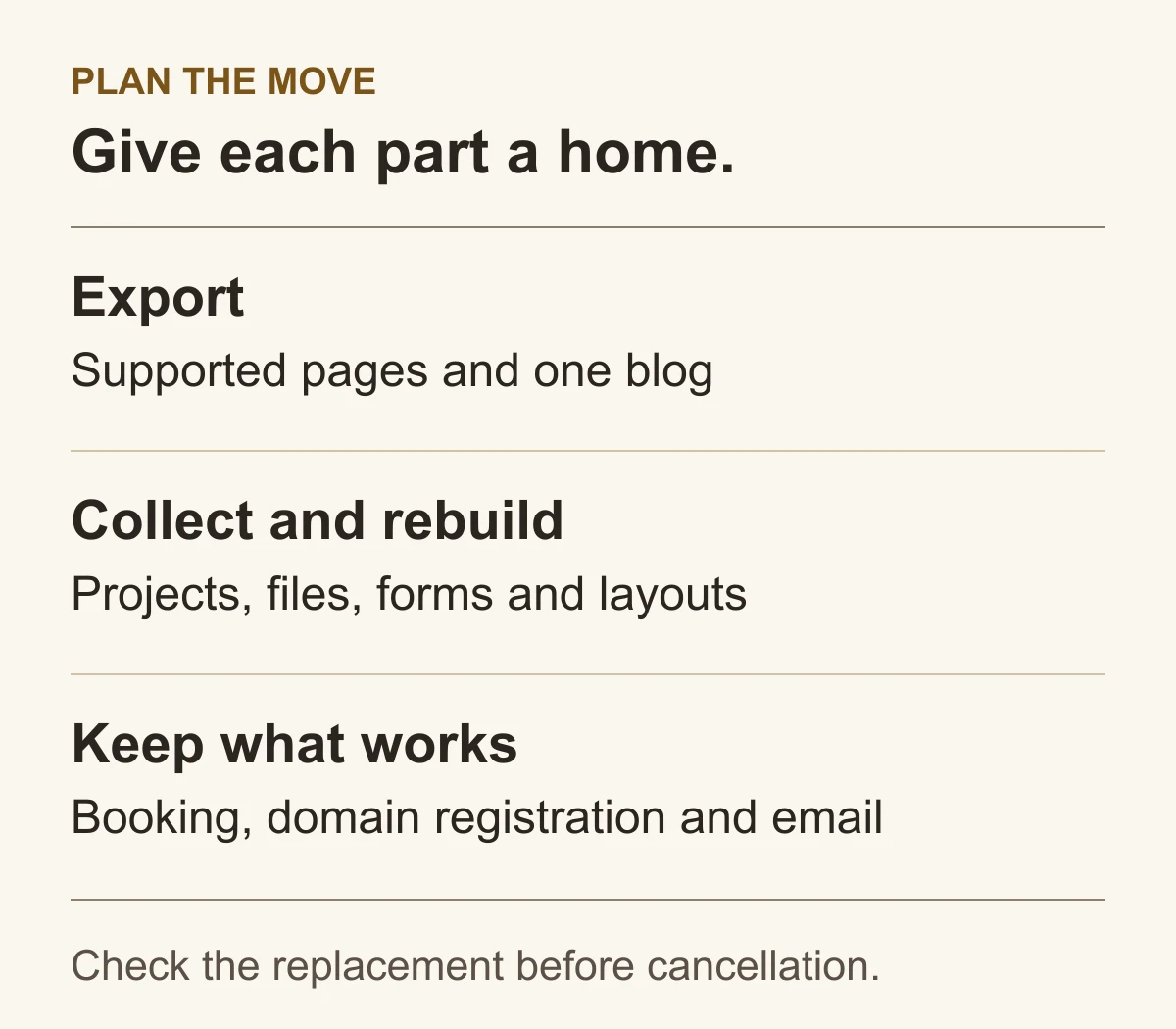
Squarespace provides a partial content export in a WordPress-format XML file. It can help move supported pages and one blog, but the new site still needs its own layouts and editing setup. Collect the material outside that export and decide which connected services you will keep before the rebuild starts.
The official site export guide lists supported content and exclusions. Drafts, portfolio pages, style settings and custom CSS need separate attention. Gallery-page export is specific to version 7.0. A version 7.1 site can still export supported content.
Save every public URL, meaning a page or file's web address, alongside the export. Include pages outside the main navigation, blog posts, projects and useful downloads. Use this list for the search checks below.
Save the export and the missing pieces
Download the export while the site is active, then check what it actually contains. Save original photographs, PDFs and videos separately. Keep copies of important page text, draft work and shared information such as footer details. Give the person building the new site this material before they estimate the content work.
Make sure your Squarespace site is active and its availability is set to Public. Open Import & export content, choose Export, then select the WordPress icon. Select the blog if prompted and download the finished XML file. The icon is used even when the destination is a custom website rather than WordPress.
Ask the builder to try one representative page and blog post before planning the full import. If the new site uses a different editor, agree how that content becomes editable pages, posts and projects. Use the CMS comparison if you still need to choose how your team will make updates.
Squarespace has no bulk export for images or uploaded videos. Gather originals from your own folders and download individual images from the Asset library where needed. Save linked PDFs too. A link in an export file is not a saved copy of the document. Squarespace-hosted files can also have their own static asset URLs, which cannot be redirected. Upload saved copies to the new site and update the links you control.
If you are moving to WordPress.com, its Squarespace import instructions say to keep the old site publicly accessible during the import and to upload missing images manually. With any destination, check that the replacement has its own saved media files, rather than relying on images loaded from the old site.
A filled inventory you can adapt
Use one entry for each part of the business website, with a person responsible and a clear way to check it. The example below follows a hypothetical service business moving a Squarespace 7.1 website to a custom site with an editor for pages, posts and projects. It keeps Acuity, its registered domain and Google Workspace.
Pages and blog
The owner saves the XML for service pages and the blog, plus draft posts and shared header and footer text. After the builder imports supported content and recreates layouts, the owner compares the page list, checks dates and links, and tries a routine text update.
Project portfolio
The office coordinator collects project text, photographs, captions and current addresses from Squarespace portfolio pages. The builder creates editable project entries. The coordinator compares them with the saved material and checks photograph order on a phone.
Photographs and PDFs
Original photographs and brochures go into the coordinator's saved collection, along with individually downloaded images and linked PDFs. The builder uploads these files to the new site and reconnects them to the right pages. The coordinator opens every brochure and checks important page images; the builder confirms the copies are stored on the new site.
Contact form
For the form, the office manager records the questions, required answers, confirmation message and where inquiries go, and saves needed submission history. After the builder recreates the form, the manager sends a test inquiry, checks that every answer arrives and reviews what visitors see if sending fails.
Appointment booking
The owner keeps Acuity. The builder replaces the Squarespace scheduling block with a link to the existing scheduling page. The owner checks appointment choices on a phone and confirms that staff can still manage appointments in Acuity.
Domain and email
The owner keeps Squarespace domain registration and Google Workspace. The person managing the domain saves its settings and changes the website connection, preserving email settings. The owner opens the new site at the usual address and checks that email sends and receives.
For each entry, write: what exists, where the saved copy is, what moves or stays, who checks it, and what still needs doing.
Copy these entries into a document and replace the example with your own pages, services and people. Mark something complete only when the saved copy or working replacement has been checked. An entry such as "images exported" is less useful than "brochure opens from the new site; Maria checked it."
Protect your existing search visibility
Keep useful URLs unchanged where practical, and plan a relevant destination for each one that changes. Preserve important page titles, headings and content for the initial move so you can assess the rebuild before making larger editorial changes. Use your full public URL inventory, including images and downloads that people link to.
For each URL on your domain that changes, choose the closest equivalent on the replacement site. Ask the builder to set up a permanent 301 redirect, which sends visitors and search engines from the old address to the new one. Set these up on the new host: Squarespace's old URL mappings will not control requests once your domain points elsewhere. Keep unchanged URLs working directly. Send each changed address straight to its final destination, and avoid sending unrelated old pages to the homepage. Google's redirect guidance explains permanent redirects.
Keep the test site hidden from search while it is being built. At launch, ask the builder to remove noindex instructions and robots.txt blocks from the public replacement. Check each important page's canonical URL, its preferred address for search, and the sitemap, the list of pages supplied to search engines. Both should use the correct live addresses, and links within the site should go directly to them.
After launch, submit and check the sitemap in Google Search Console, Google's tool for reviewing search visibility. Check important URLs there, then monitor missing-page (404) errors, indexing and search impressions and clicks. Search visibility can fluctuate during a move; investigate missing pages and unexpected drops. Bring this work into the SEO migration plan alongside the content rebuild.
Keep booking, your domain and email working
Keep the connected services that still suit your business. Acuity can continue handling appointments, a Squarespace-registered domain can point elsewhere, and Google Workspace can remain active. Confirm account access and billing before the website changes, so bookings and email keep working through the move.
Acuity's instructions for adding scheduling to another website cover embeds and booking buttons. Choose the option that suits the replacement site and keep a direct scheduling link available while the site changes.
Your domain is the website name you registered. Squarespace explains how to point it to another provider while keeping registration there. The builder changes DNS, the settings that connect that name to your website and email, using the new host's instructions. Transferring registration is a separate choice. The built-in Squarespace address cannot be pointed elsewhere.
Record who manages email billing and who can access its administration account. Preserve the DNS settings email uses when changing the website connection. If you are changing email providers too, plan that separately, including mailboxes and continued access.
Does your website also sell something?
A shop needs a separate inventory before the website is retired. Squarespace's product CSV is a starting point for physical and service products, while images, other product details and customer activity need their own checks. Choose the destination store first so you can confirm what it imports and how customers will use it.
The product export guide describes a separate CSV download. It omits additional product information, customer reviews, featured images, image alt text and variant images. Collect those alongside the catalog and check the destination's required format before importing.
List digital downloads, open orders, customer contacts, gift-card balances, paid memberships and recurring subscriptions separately. Work out how buyers receive what they paid for and how staff handle outstanding orders.
Squarespace says active store product subscriptions are canceled immediately when the website subscription is canceled or expires. Its legacy Digital Products guidance describes a 30-day pause after the website ends: members lose access to content behind a login, and subscriptions to that content are canceled if the website is not renewed within that time.
Check the rules for your own plan and arrange continued access and payments before retiring the shop. Include its emails and automations in that plan. The service-site example above can be reused for the public pages, while the store gets its own move and testing work.
When can you cancel the old website?
Wait until your content and files are safely copied, the replacement is working at your normal address, and the people handling inquiries and appointments have checked their everyday tasks. Review the website subscription separately from booking, domain and email subscriptions. Keeping a short overlap gives you time to compare the sites and finish collecting material.
Check the saved material
Open the export and collected files. Compare them with the inventory, including drafts, projects and downloads. Record where the final copies are kept.
Check the replacement
Review important pages on desktop and phone. Confirm the new media files, inquiries reaching the right inbox, booking link and routine editing tasks with the people who use them.
Check the usual address
After the website connection changes, open important old page links and check that each reaches the right new page. Check the normal domain and business email too. Have the builder confirm that the old site can be retired.
Review each subscription
Decide which website, domain, email, booking and marketing subscriptions to keep. Confirm renewal dates and account access before ending the old website plan.
Under Squarespace's current cancellation guidance, domains, Google Workspace and Acuity remain active and billed separately after the website goes offline. Automated Email Campaigns stop sending. Include any relied-on automations in the replacement plan, and keep business email active unless you have separately arranged its move.
Bring the finished inventory into the rebuild discussion. It shows what the website development work needs to recreate and what can stay.
References
These official guides explain the export, retained services and search checks used here. They were checked on October 7, 2026. Read the destination provider's instructions alongside them when planning your own import and website connection.
References (14)
- Squarespace. Exporting your site. https://support.squarespace.com/hc/en-us/articles/206566687-Exporting-your-site
- Squarespace. Import to and export from your site. https://support.squarespace.com/hc/en-us/articles/205814028-Import-to-and-export-from-your-site
- Squarespace. Image and file URLs in Squarespace. https://support.squarespace.com/hc/en-us/articles/205812748-Image-and-file-URLs-in-Squarespace
- Squarespace. Create and sell subscription products. https://support.squarespace.com/hc/en-us/articles/360002012247-Create-and-sell-subscription-products
- Squarespace. Cancel your Digital Products plan. https://support.squarespace.com/hc/en-us/articles/360050367612-Cancel-your-Digital-Products-plan
- WordPress.com. Import from Squarespace. https://wordpress.com/support/import/import-from-squarespace/
- Acuity Scheduling. Adding Acuity Scheduling to your website. https://help.acuityscheduling.com/hc/en-us/articles/16676884389133-Adding-Acuity-Scheduling-to-your-website
- Squarespace. Pointing a Squarespace domain. https://support.squarespace.com/hc/en-us/articles/215744668-Pointing-a-Squarespace-domain
- Squarespace. Export products to a CSV. https://support.squarespace.com/hc/en-us/articles/360000694948-Export-products-to-a-csv
- Squarespace. Cancel your website subscription. https://support.squarespace.com/hc/en-us/articles/205810508-Cancel-your-website-subscription
- Google Search Central. How to move a site. https://developers.google.com/search/docs/crawling-indexing/site-move-with-url-changes
- Google Search Central. Redirects and Google Search. https://developers.google.com/search/docs/crawling-indexing/301-redirects
- Google Search Central. Changing your web hosting. https://developers.google.com/search/docs/crawling-indexing/site-move-no-url-changes
- Google Search Central. Build and submit a sitemap. https://developers.google.com/search/docs/crawling-indexing/sitemaps/build-sitemap
Bring your inventory to the studio
Send your current Squarespace URL, what needs to move and what you want to keep. We can use that inventory to scope the rebuild and migration together.